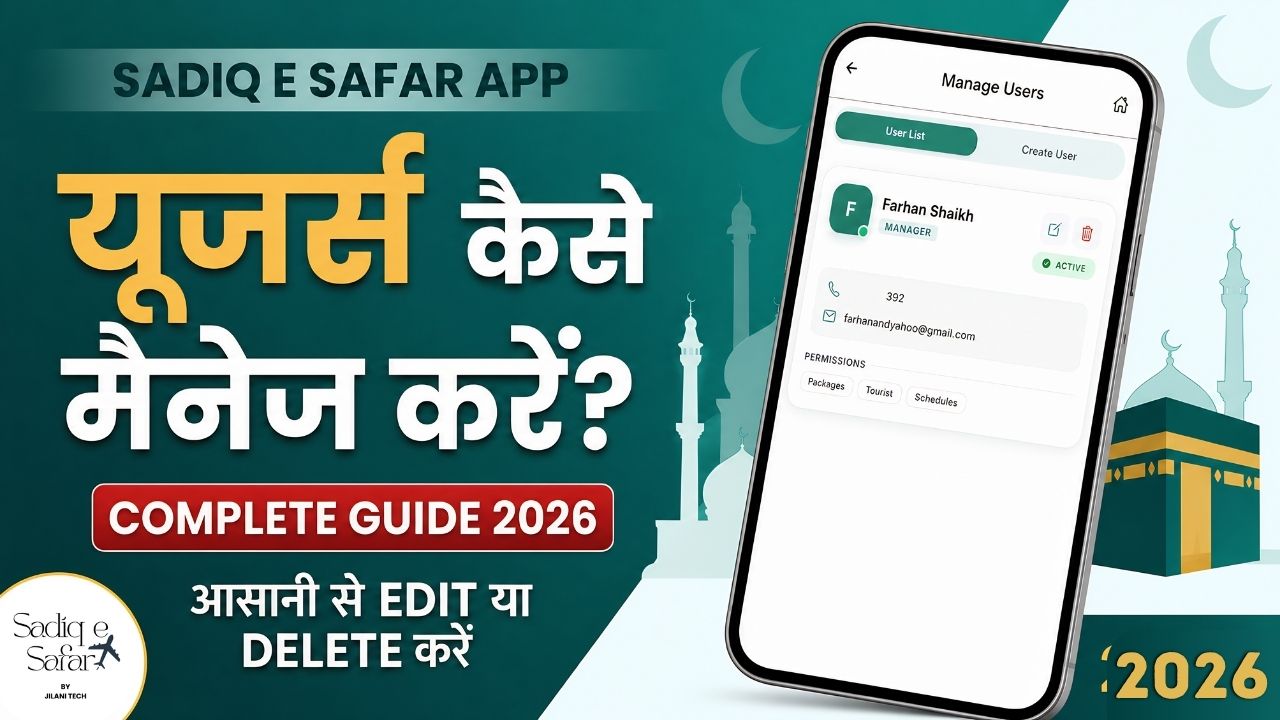
As your travel agency grows, you'll likely need a team to help manage bookings, tourists, and finances. Sadiq E Safar's user management module allows you to add team members with specific roles and granular permissions. This ensures your data remains secure while empowering your staff to do their jobs effectively.
1 Accessing the User Management Section
- Navigate: From the main dashboard, locate and click on the **"Manage User"** option 00:35 .
- Administrative Access: Remember that the primary account (your login) is the **Owner Account**, which has full control over all other users 00:47 .
2 Creating a New Sub-User
To add a new member to your agency, click the "Add User" icon and enter their profile details 01:04 .
- Profile: Input their **Name**, **Mobile Number**, and **Email Address**.
- Security: Create a unique password for the user so they can log in from their own device 01:19 .
3 Assigning Roles & Permissions
Granular access control allows you to define exactly what each team member can see or do 01:38 .
- Admin Role: Provides a dashboard similar to yours with extensive access 01:53 .
- Manager/Staff Role: Can **create and update** entries only on the specific pages you permit 02:01 .
- Viewer Role: Read-only access. They can see data but **cannot** create or update anything 02:28 .
- Page Permissions: Manually toggle access to specific modules like "Packages," "Tourist," or "Finance" 02:40 .
Set the status to **"Active"** and click **Submit** to finalize 02:55 .
4 Modifying & Managing Users
- Update: Click the Edit (pencil) icon on a user entry to update their roles, permissions, or contact info 03:34 .
- Deactivation: Change their status to "Inactive" to block access without deleting their history. This logs them out of all devices instantly 04:30 .
- Deletion: Use the Red Delete icon and confirm with "Yes" to remove a user permanently 04:49 .
Collaborate with Your Team
Watch the full tutorial to see how to build and manage a secure team within your Sadiq E Safar agency.
Watch User Management Guide