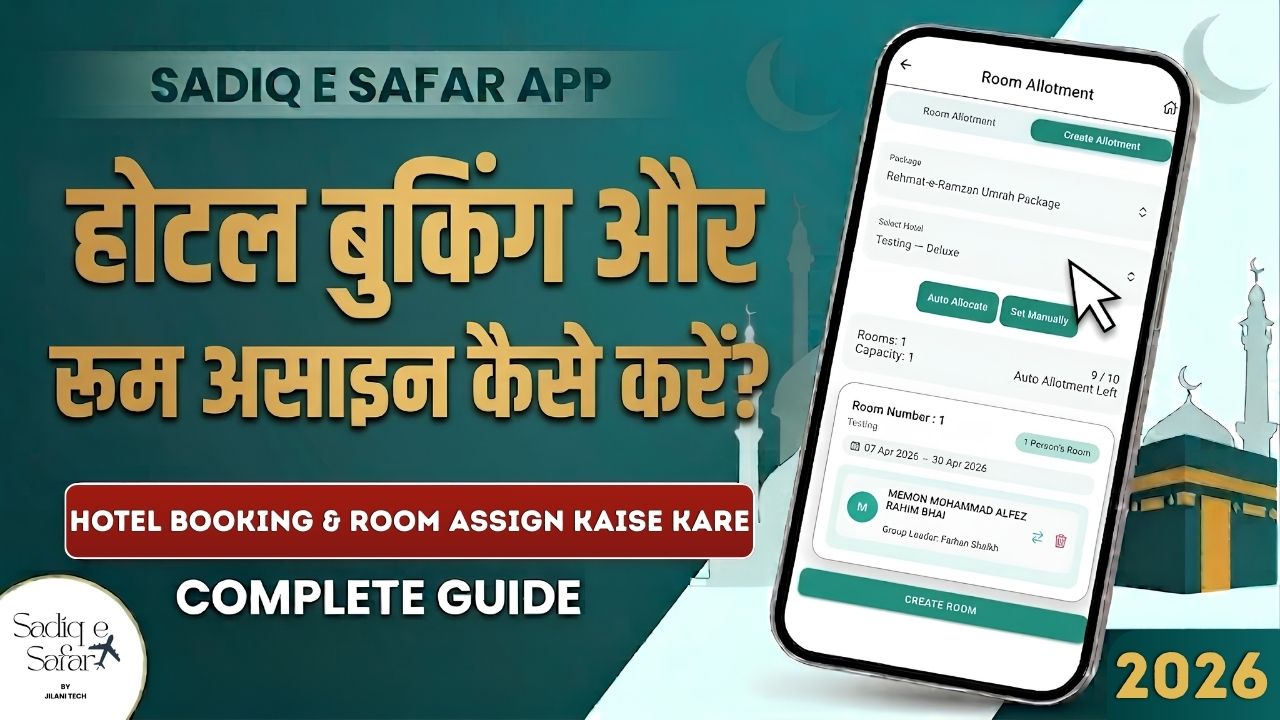
Managing hotel accommodations for large groups can be complex. Sadiq E Safar provides an intuitive system to record hotel bookings and allot rooms to your tourists either automatically or manually. This guide breaks down the entire process into simple, actionable steps.
Prerequisites
Before you begin the hotel and room management process, ensure you have completed these initial steps:
- Create a Package: Set up the specific travel package in the app 00:22 .
- Create Tourist Groups: Add the tourists or groups that will be part of the travel 00:25 .
1 Step 1: Hotel Booking Entry
In this step, you record the details of the hotel you have booked for a specific package.
- Navigate: Go to the **Hotel Booking** section in the app 00:33 .
- Details: Select the relevant package and enter the Hotel Name and Address 00:50 .
- Set Dates: Select the Check-in and Check-out dates according to your travel schedule 01:16 .
- Configure Rooms: Enter the Total Number of Rooms booked and define the Room Category and Capacity for each 01:31 .
Click "Add Hotel Details" to save the information to your list 02:00 .
2 Step 2: Room Allotment (Assigning Rooms)
Once the hotel is added, you need to assign specific rooms to your tourists.
- Initiate: Go to the **Room Allotment** section and click "Create Allotments" 02:14 .
- Selection: Choose the **Package** and the **Hotel** you just created 02:22 .
- Allotment Methods:
Click "Create Room" to complete the assignment 03:46 .
3 Managing Existing Allotments
Adapt your assignments as your group's needs change.
- Edit: Select the hotel and click the Edit icon to update room details instantly 05:05 .
- Delete: Clear the current assignments by clicking the Delete button and confirming 05:18 .
Streamline Your Group Accommodation
Watch the full tutorial to see the auto-allotment feature in action and learn how to manage rooms efficiently.
Watch Hotel Management Guide