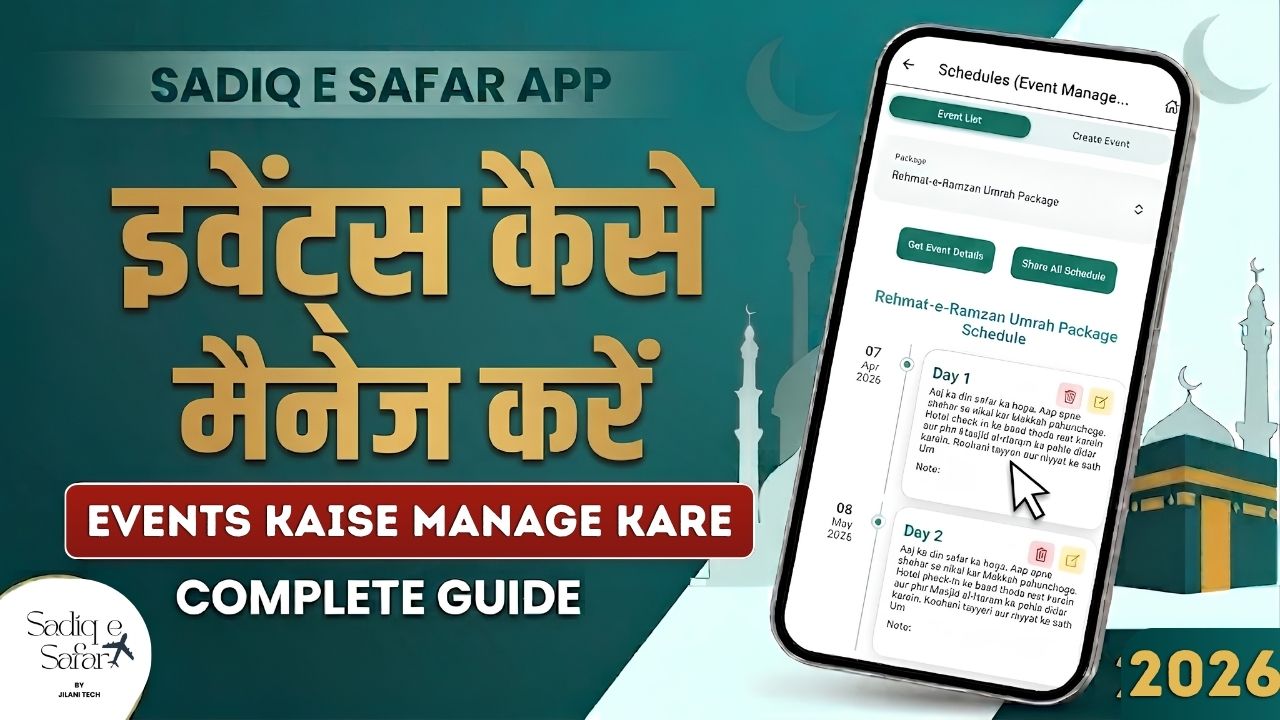
Providing a clear, day-by-day itinerary is a hallmark of a professional tour operator. Sadiq E Safar's Event Management system allows you to plan every detail of your tour and share it effortlessly with your clients. This guide covers how to organize your tour schedules and generate professional PDF itineraries.
1 Prerequisites: Creating a Package
Before you can manage events, you must have an active **Tour Package** created in the system. Events are directly linked to the specific dates and duration of your packages 00:15 .
- Link to Duration: For example, if your package runs from April 25th to May 5th, your events will be organized within this timeframe 00:21 .
2 Accessing Event Management
Ready to organize Hajj, Umrah, or other tours? Navigate to your dashboard to access the scheduling tools.
- Find Schedules: Select the Schedules (Event Management) option from the main menu of the app 00:38 .
3 Creating a New Event
This feature allows you to plan the specific activities for each day of your tour 00:47 .
- Selection: Choose the relevant tour package from the dropdown list 01:01 .
- Event Title: Provide a descriptive name, such as "Arrival Day" or "Sightseeing Day 1" 01:10 .
- Detailed Description: Enter the full itinerary details and planned activities 01:31 .
- Timing: Assign the exact date and time for the activity 01:39 .
- Internal Notes: You can also add private notes for your team 01:59 .
Click Create Event to add it to your itinerary 02:05 .
4 Managing & Sharing the Itinerary
Once your events are created, Sadiq E Safar automatically organizes them into a professional timeline.
- Organized View: All events are displayed in a list format, automatically sorted by date 02:14 .
- PDF Generation: Generate a professional **PDF document** of the full schedule with one click. This is perfect for sharing with your group members via messaging apps, ensuring everyone stays informed 02:42 .
5 Editing or Deleting Events
Travel plans can change, and Sadiq E Safar makes it easy to adapt your itinerary.
- Modify: Use the Yellow Edit Icon to update times or descriptions instantly 03:34 .
- Remove: Use the Red Delete Icon to remove unwanted entries 03:49 .
Deliver a Five-Star Experience
Watch the full video tutorial to see how to create a perfect tour schedule for your clients.
Watch Event Management Guide