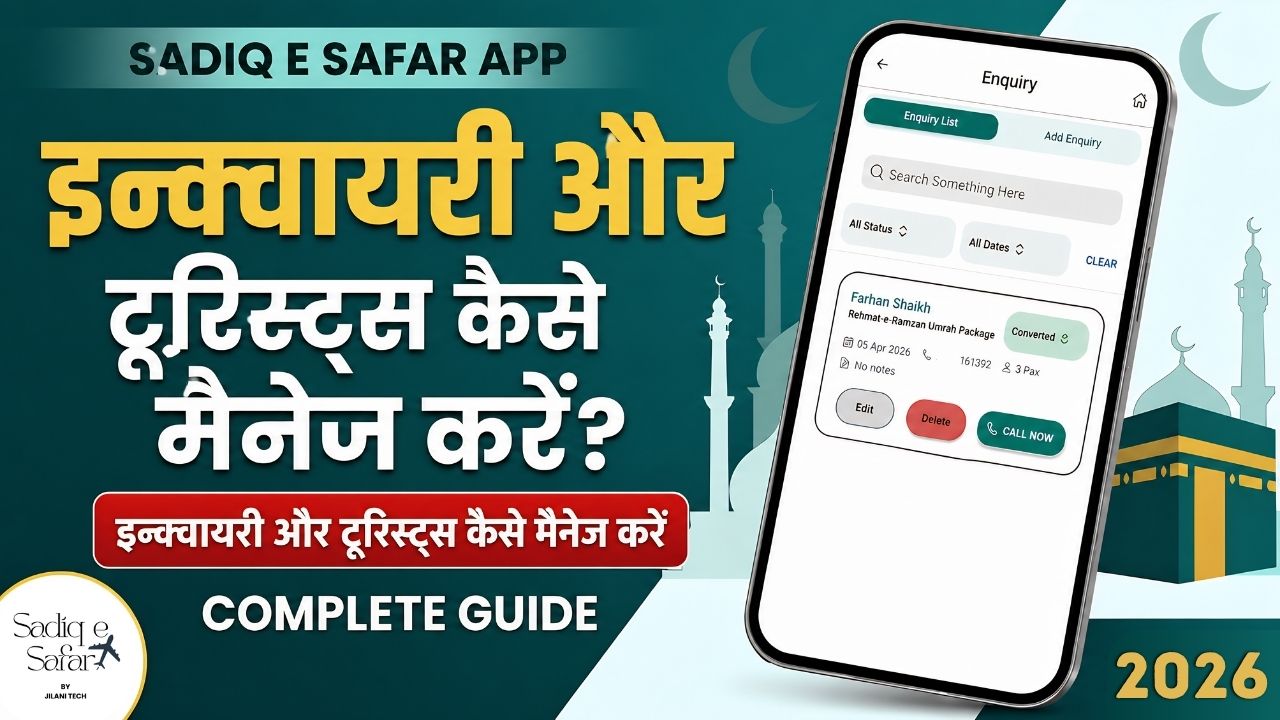
Effective lead management is the backbone of any successful travel agency. Sadiq E Safar simplifies the transition from a casual inquiry to a confirmed booking. This guide walk you through how to manage enquiries and convert them into active tourist groups seamlessly.
1 Step 1: Adding a New Enquiry
Before managing tourists, you must first log a potential lead in the "Enquiries" section of the app.
- Access the Menu: Open the app and navigate to the Enquiry section from the dashboard 00:22 .
- Fill Details: Click on Add Enquiry and enter the customer's name, their selected package 00:49 , and the number of passengers 01:06 .
- Set Status: Set the initial status as "New" and click Add Enquiry 01:32 .
2 Step 2: Managing and Contacting Leads
Once the enquiry is added, you can interact with the lead directly through the app to improve conversion rates.
- Direct Calling: Use the "Call Now" button to instantly contact the customer without searching for their number 01:52 .
- Editing/Updating: If the customer's requirements change, click the Edit button to modify details and keep your records accurate 02:08 .
3 Step 3: Converting Enquiry to Tourist
When a customer agrees to a package, Sadiq E Safar makes it easy to transition them to your tourist database.
- Status Change: Change the enquiry status to "Converted" 02:33 .
- Confirmation: The app will ask if you want to add this user as a tourist; select "Yes" to proceed to the tourist management page 02:40 .
4 Step 4: Adding Tourist Group Details
Finalize the booking details for the group to ensure smooth operations and professional invoicing.
- Group Leader: Details are auto-filled from the enquiry. Add the leader's address and email 03:03 .
- Passenger Count: Specify the exact number of Adults and Kids 03:15 .
- Pricing & Discounts: Rates are auto-filled based on the package. You can manually enter a Discount Amount, which will be automatically deducted from the total 03:39 .
- Document Upload: Upload Passports for auto-filling passenger details, or add them later by editing the group 03:52 .
5 Step 5: Managing Payments
Stay on top of your agency's finances with real-time payment tracking for every group.
- Check Balance: Instantly view the "Pending Amount," "Paid Amount," and "Total Rate" 04:56 .
- Collect Payment: Enter the amount received, select the Payment Mode, and the system will automatically update the remaining balance 05:49 .
Want to See it in Action?
Watch our complete video guide to see the full workflow from Enquiry to Tourist conversion.
Watch Complete Guide